
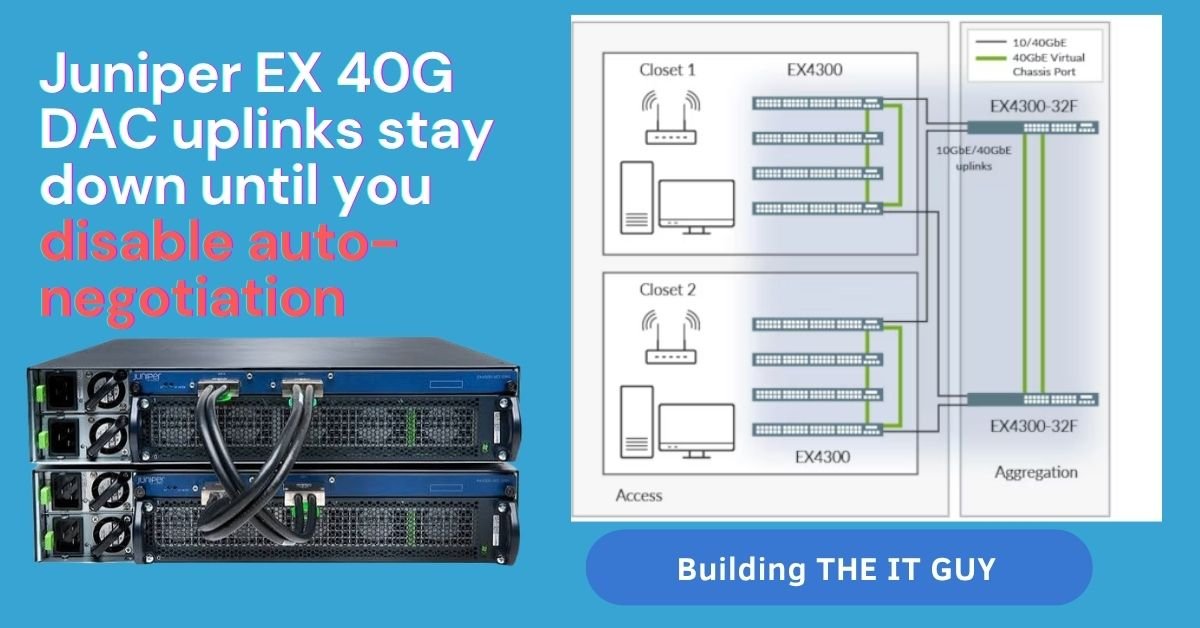
I recently lost hours troubleshooting this exact scenario. You have perfectly good switches, brand new DAC cables, and solid transceivers yet the link stays stubbornly down. It is enough to drive any network engineer crazy and make you second-guess your hardware.
In the spirit of building “Calm IT Operations” and eliminating the drama from troubleshooting, I am documenting this. The root cause is surprisingly simple. I am sharing this real-world fix so you do not have to waste your time pulling cables or opening support tickets. Here is exactly how to bypass the headache and bring your uplinks online in seconds.
+---------------------+           +---------------------+
| Juniper EX4300-48P  |           | Juniper EX4600-40F  |
|      (PIC 1)        |           |      (PIC 0)        |
|                     |           |                     |
|  [et-0/1/0]         |  <----->  |         [et-0/0/24] |
|  (QSFP+ 40G)        | 40G DAC   |       (QSFP+ 40G)   |
|                     |  Cable    |                     |
+---------------------+           +---------------------+
The Problem: Your 40G Link Is Down, But It Shouldn’t Be
You’ve connected two Juniper EX-Series switches perhaps a core EX4600 and an access EX4300 with a 40G QSFP+ Direct Attach Copper (DAC) cable. The physical connections are solid, and the configuration looks right. Yet, when you check the interface status, the link remains stubbornly down.
This can be a frustrating puzzle, often leading engineers to suspect a faulty cable or hardware. However, a common and often overlooked culprit is a mismatch in auto-negotiation. This post will guide you through the symptoms and provide a simple, effective fix.
Symptoms and Diagnosis
You’ll know you’re facing this issue when a simple show interfaces terse command reveals a port that is “up” administratively but “down” physically.
On the EX4300:
root@ASATH-Spine-SW01> show interfaces et-0/1/0 terse
Interface               Admin Link Proto    Local                 Remote
et-0/1/0                up    down
et-0/1/0.0              up    down eth-switch
On the EX4600 (Core):
root@ASATH-LAB-CORE# run show interfaces et-0/0/24 terse
Interface               Admin Link Proto    Local                 Remote
et-0/0/24               up    down
et-0/0/24.0             up    down eth-switch
You might also see “Incomplete” or similar messages in the auto-negotiation status when you run an extensive interface check.
The Simple Fix: Disable Auto-Negotiation
The reason for the link failure is that some DAC cables, even official Juniper ones, can be particular about how they handle auto-negotiation. In a direct QSFP+ connection between two fixed-speed devices, auto-negotiation is often unnecessary and can actually introduce a point of failure.
By disabling auto-negotiation and manually setting the speed to 40G on both ends, you force the link to establish without any negotiation handshake.
Step 1: Identify the Ports
Ensure you are targeting the correct 40G interfaces on each switch. In our example, that’s et-0/1/0 on the EX4300 and et-0/0/24 on the EX4600.
Step 2: Configure the EX4300
In configuration mode, run the following commands:
set interfaces et-0/1/0 ether-options no-auto-negotiation
set interfaces et-0/1/0 ether-options speed 40g
commit
Step 3: Configure the EX4600
Repeat the process on the core switch:
set interfaces et-0/0/24 ether-options no-auto-negotiation
set interfaces et-0/0/24 ether-options speed 40g
commit
Verification and Best Practices
After committing the changes on both switches, the physical link should come up instantly.
Run show interfaces terse again to confirm:
root@ASATH-Spine-SW01> show interfaces et-0/1/0 terse
Interface               Admin Link Proto    Local                 Remote
et-0/1/0                up    up
et-0/1/0.0              up    up   eth-switch
| Do This | Avoid This |
| Document manual speed settings. | Forgetting to apply the fix to both ends. |
| Use certified transceivers/cables. | Assuming the cable is bad before troubleshooting. |
| Match speed settings on both sides exactly. | Missing the underlying auto-negotiation issue. |